


Add a Data Source
To create and configure a new data source by defining connection details, authentication, and export settings.
To add a data source
-
Go to Configuration > DataSources.
-
Click + Add Data Source.
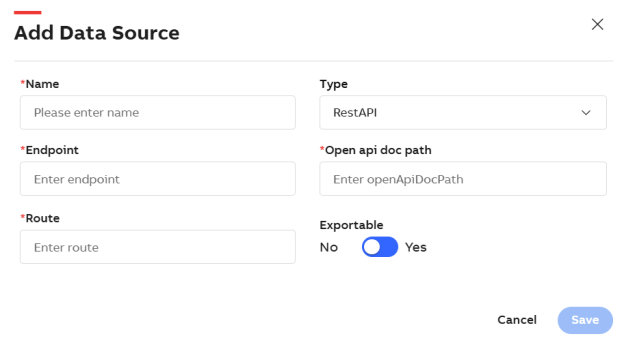
Add Data Source screen
-
On the Add Data Source screen, enter the following details to create the data source:
Field
Description
Name
Name of the data source that is to be added.
Endpoint
URL of the data source, that is used to access the data source from where you want to fetch the data. Type
Select the type of Data Source from the dropdown list. By default, RestAPI is selected. Currently, RestAPI and Odata data source types are supported.
Open Api Doc path
The Endpoint of the API in the Request URL is appended with Open Api Doc path. The Open Api Doc path contains the list of all the paths that is visible under the Edit Widget Properties>Data Source >Select Path dropdown menu.
Route (applicable for RestAPI)
It is the path by which the data is being fetched from the data source.
configuration.odata.authenticationType (applicable for Odata)
Select the authentication type from the dropdown. It provides the following options.
-
Anonymous: No authentication is required.
-
Basic: Required credentials for authentication.
configuration.odata.userName (applicable for Odata)
Enter the user name. configuration.odata.password (applicable for Odata)
Enter the password. Exportable
Select Yes or No using the radio button.
-
Yes- Dashboards that use this data source can be exported.
-
No- Dashboards that use this data source can't be exported.
For more information, see Export Dashboard.
-
-
Click Save.
A confirmation message is displayed indicating that the data source is created successfully. Currently, KSH and Metric Hub serve as the primary data sources.